 Rewordz
Vocabulary widget for Android: learn words from your home screen
A vocabulary widget shows a word or a flashcard right on your phone's home screen, so you can review it while unlocking your phone instead of opening an app. People check their phones dozens of times a day, mostly for a few seconds, and a widget turns some of those moments into spaced repetition reviews. The best ones quiz you instead of just showing a word of the day.

· 7 min read
Why vocabulary apps get abandoned
Spaced repetition works. The research behind it goes back more than a century, and we cover it in spaced repetition intervals. The weak point is practical: the method only works if you review each word around the day it's due, and that means opening the app on time, every day, for months.
The Stanford researcher BJ Fogg describes behavior as the result of three things meeting at the same moment: motivation, ability and a prompt (Fogg, 2009). A vocabulary app has the motivation part covered when you install it. Ability is fine too, since a review takes seconds. The prompt is the problem. A notification arrives while you're busy, and the app icon sits on your third screen. Each skipped day pushes reviews later and makes the next session longer. We look at that and the other reasons learners quit in why people give up learning a language.
Your phone already gives you the time
A widget fixes the prompt by putting the review where you already look. And you look often. In a 2015 study that logged real phone use, young adults checked their phones about 85 times a day and spent about five hours on them in total. More than half of those sessions lasted under 30 seconds, and participants used their phones about twice as often as they thought they did.
A one-card review fits easily into a few of those 85 moments. It also helps the habit form: daily behaviors become automatic faster when they're attached to a stable cue (Lally et al., 2010), and unlocking your phone is about as stable as cues get.
Word of the day or flashcard widget?
Most "vocabulary widgets" fall into two groups, and they don't do the same thing for your memory.
| Word-of-the-day widget | Flashcard widget with spaced repetition | |
|---|---|---|
| What it shows | A word picked for you | Your own words, when they're due |
| What you do | Read it | Recall it, then grade yourself |
| When it changes | Once a day | After each review, on a schedule for each word |
| Effect on memory | Exposure | Retrieval practice plus spacing |
The difference matters. In a well-known vocabulary study, students who kept trying to recall Swahili words remembered about 80% of them a week later, while students who kept studying them remembered about a third. Reading a word on your home screen is studying. Trying to remember what it means before you check is retrieval.
What makes a good vocabulary widget
- It asks before it tells. The meaning stays hidden until you choose to reveal it, so every glance is a small test.
- It follows a schedule. It shows the word that's due, not a random one, so reviews land when they do the most good.
- It shows the word in context. A sentence or a short exchange tells you how the word is used, so you learn more than a translation.
- You grade on the widget. One tap for "know", one for "don't know". If you have to open the app, you're back to the prompt problem.
- It uses your words. Words you ran into yourself are more useful and easier to remember than a generic list.
- It knows when to stop. When nothing is due, it should say so instead of inventing busywork.
How to add a widget on Android
- Install the app and open it once. Most widgets need you to sign in or set up before they can show anything.
- On your home screen, touch and hold an empty space.
- Tap Widgets.
- Find the app, then touch and hold its widget and drag it onto your home screen.
- To resize it, touch and hold the widget, let go, and drag the handles.
These are the steps from Google's Android help. Menus vary a little between phone makers. Since Android 8, apps can also offer a button that asks your launcher to place the widget for you, which is what the "Add widget" button in Rewordz does.
Where to put it
Put it on your first home screen page, where your eyes land right after unlocking. Make it wide enough for a full sentence, so you're not reading a word cut in half. If you want a stronger habit, connect it to a moment you already have, such as your first coffee or your commute, and do your first review of the day there.
The Rewordz widget
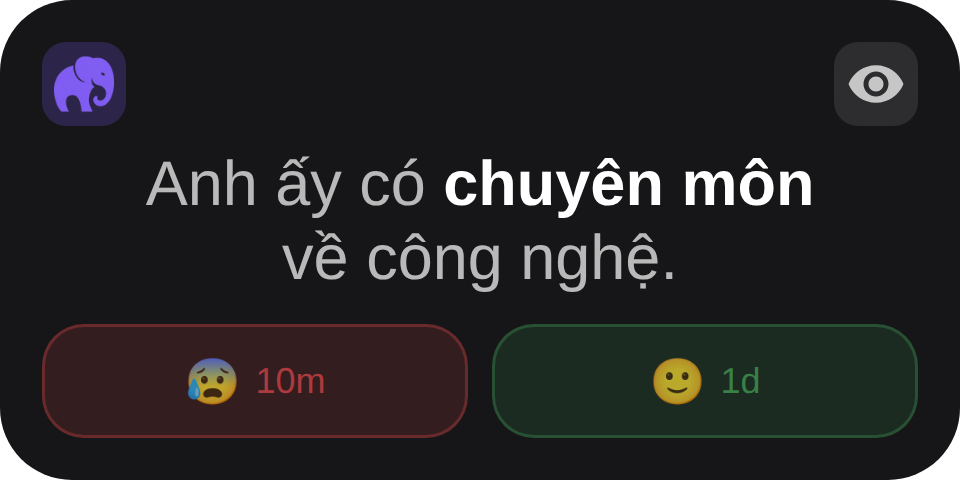
Rewordz was designed around its widget. You add a word in the app, in the language you're learning or in your own, and Rewordz writes the flashcard for your language pair: a translation and a two-line conversation using the word, between two emoji characters in a scene of colour and emojis picked to help you remember it. The widget then shows the word that's due on its own, big, in front of its scene.
- Tap the word to see its conversation, with the word in bold.
- Tap the conversation to see it in your language, with the word's translation in bold.
- Tap "don't know" and the word comes back in 10 minutes. Tap "know" and it moves up the ladder: 1 day, 3 days, a week, all the way to 6 months. Each button shows when you'll see the word next.
- Tap the speaker to hear the word, or the conversation, read aloud in the language you're learning, with your phone's own voices, without opening the app.
- Tap the elephant to see how many words are waiting, your knowledge score, your streak and your word count, with buttons to add a word, open your dictionary, search or go to your profile.
The word you're closest to forgetting comes up first, and when nothing is due the widget tells you you're all caught up and shows your knowledge score. Words sync with your Google account, and the app and the widget share the same review schedule.
Frequently asked questions
Is there a vocabulary widget for Android?
Yes. Several Android apps offer a home-screen vocabulary widget, from simple word-of-the-day widgets to flashcard widgets. Rewordz is built around a flashcard widget: it shows your own words inside short conversations, lets you grade yourself on the widget and schedules each word with spaced repetition. It is coming soon to iPhone and Android, with a waitlist open at rewordz.app.
Do vocabulary widgets actually work?
They work when they make you recall the word and space the reviews out. Seeing a word of the day is passive exposure, while trying to recall a word before checking it is retrieval practice, which produced about 80% recall a week later versus about a third for restudying in Karpicke and Roediger's 2008 vocabulary study.
How do I add a widget on Android?
Touch and hold an empty space on your home screen, tap Widgets, find the app, then touch and hold its widget and drag it where you want it. To resize it, touch and hold the widget, release, and drag the handles. Menus vary a little between phone makers, and some apps offer an in-app button that places the widget for you.
Can I put my own words in a vocabulary widget?
In Rewordz, every word on the widget is one you added. You type the word, in the language you are learning or in your own, and Rewordz writes the translation and a short conversation using the word for your language pair.
Is Rewordz available on iPhone?
Yes. Rewordz is coming to iPhone and Android, with the same home-screen widget on both.
Sources
- Fogg, B. J. (2009). A behavior model for persuasive design. Proceedings of the 4th International Conference on Persuasive Technology, 1–7. doi:10.1145/1541948.1541999
- Andrews, S., Ellis, D. A., Shaw, H., & Piwek, L. (2015). Beyond self-report: Tools to compare estimated and real-world smartphone use. PLOS ONE, 10(10), e0139004. doi:10.1371/journal.pone.0139004
- Lally, P., van Jaarsveld, C. H. M., Potts, H. W. W., & Wardle, J. (2010). How are habits formed: Modelling habit formation in the real world. European Journal of Social Psychology, 40(6), 998–1009. doi:10.1002/ejsp.674
- Karpicke, J. D., & Roediger, H. L. (2008). The critical importance of retrieval for learning. Science, 319(5865), 966–968. doi:10.1126/science.1152408
- Google. Add apps, shortcuts & widgets to your Home screens. Android Help.